Product Page Template

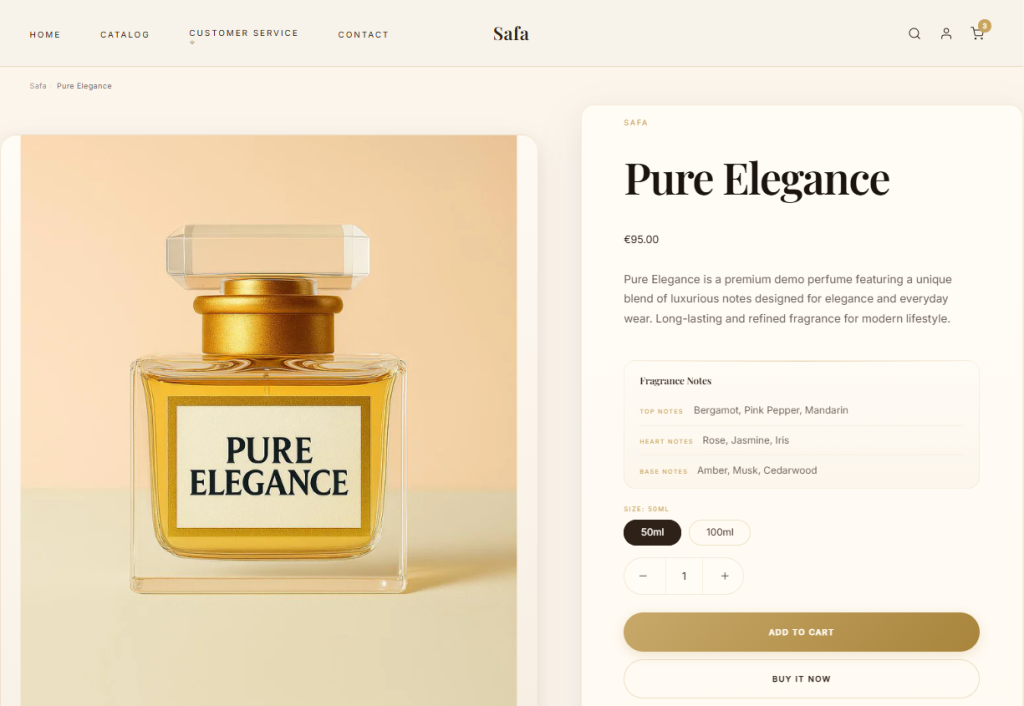
Product pages highlight the features and benefits of individual products. Customize the product page with template settings and page blocks.

Access the Product Page Settings

  1. In the theme editor (Customize), open the page selector
  2. Select Products, then Default product
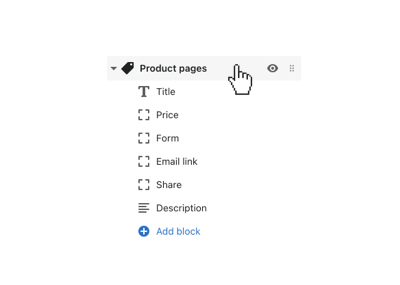
  3. In the left sidebar, select Product pages
Click Product pages to open general settings

Customize General Settings

Click to open Product pages in the left sidebar to control general settings for the product page.

Choose a Layout Option

Use the Product details alignment dropdown to select an alignment style. The Left option aligns product details to the left, while Center aligns to the center.

Show Breadcrumbs

Configure the product page to Show breadcrumbs by checking the box. Breadcrumbs are secondary navigation links that show the current location of a visitor on your website.

Media Layout

Select one of the four Layout options to position or conceal the thumbnail images:

  • Thumbnails left of gallery
  • Thumbnails right of gallery
  • Thumbnails below gallery
  • No thumbnails — to conceal the thumbnails

Media Features

  • Enable image zoom — provides customers with a closer look at product images
  • Enable video autoplay — videos play automatically when accessed
  • Enable video looping — repeat product videos automatically

Customize Page Blocks

There are blocks for Title, Price, Form, Description, Share, or Email link. Use these to control the layout of the product page features.

Add SKU, Vendor, Text, Fitting guide, and Product rating by selecting (+) Add block.

Text Block

Add a Text block, then click to open the block’s settings. Use the Position setting to place the text block in the Center (top or bottom) or on the Left or Right of the product page.

Fitting Guide Block

Include a button to connect customers with a static page. Select an Icon (Shirt, Ruler, or Info) to pair with the link.

Theme Settings for Product Page

  • Variants style — Show variants as Selectable boxes or in a Dropdown
  • Quantity selector — Include quantity control in the product form
  • Show dynamic checkout button — Send customers directly to checkout
  • Enable cart redirection — Send customers straight to cart after adding an item
  • Product media borders — Frame product media with a full border
💡 Tip: To use separate fitting guides for different products, consider creating additional templates then assign the template to products in the Shopify admin.