The Promo block is a powerful Safa block that lets you add a call-to-action below the product grid on collection pages. Use it to promote sales, link to lookbooks, highlight seasonal collections, or share brand messaging.
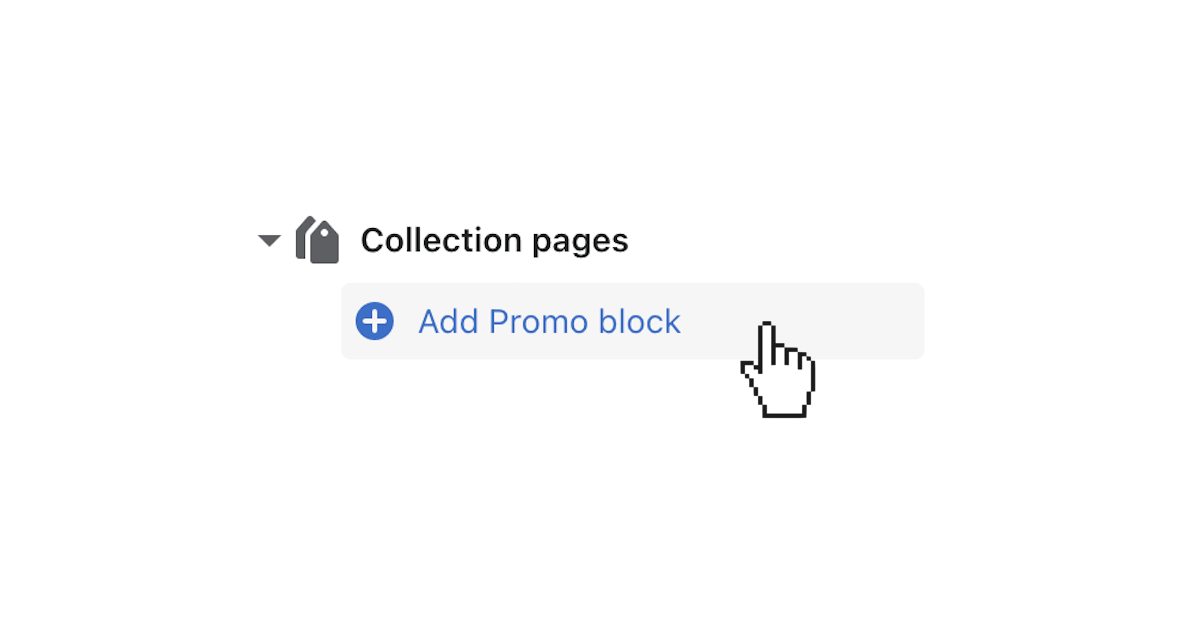
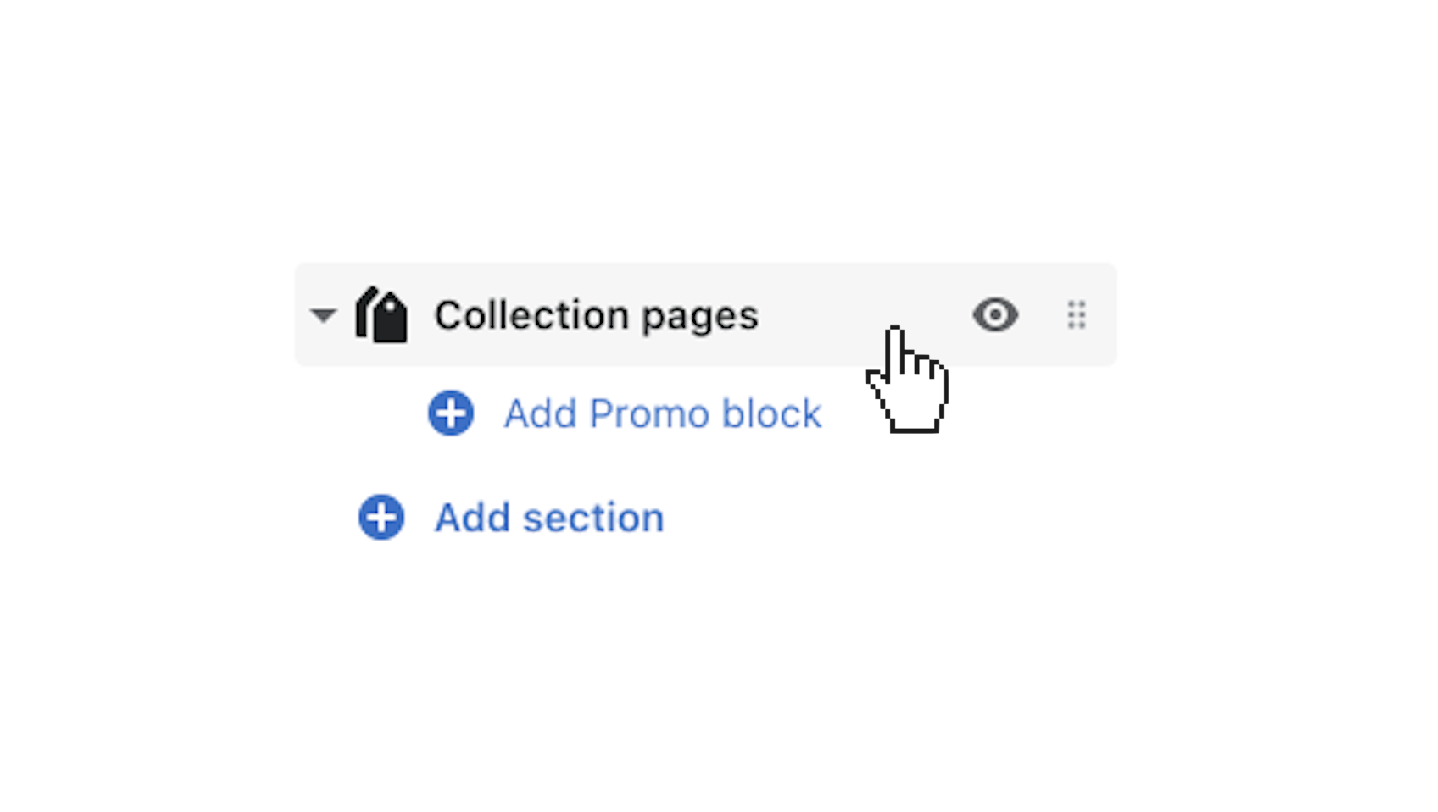
Before adding a promo block, you need to navigate to the Collection pages section settings.
Once the promo block is added, click it to open its settings:
Add a heading to draw attention. Keep it short and action-oriented, such as “New Arrivals” or “Spring Sale.”
Include descriptive text to provide context or details about the promotion.
Upload an image that supports the promo. This could be a lifestyle photo, product shot, or branded graphic. For best results, use an image with a 16:9 aspect ratio.
Set a destination link for the promo block. This can be a product, collection, blog post, or custom URL.
Customize the call-to-action button text. Default text is “Learn More” but you can change it to something more specific like “Shop Now” or “View Sale.”
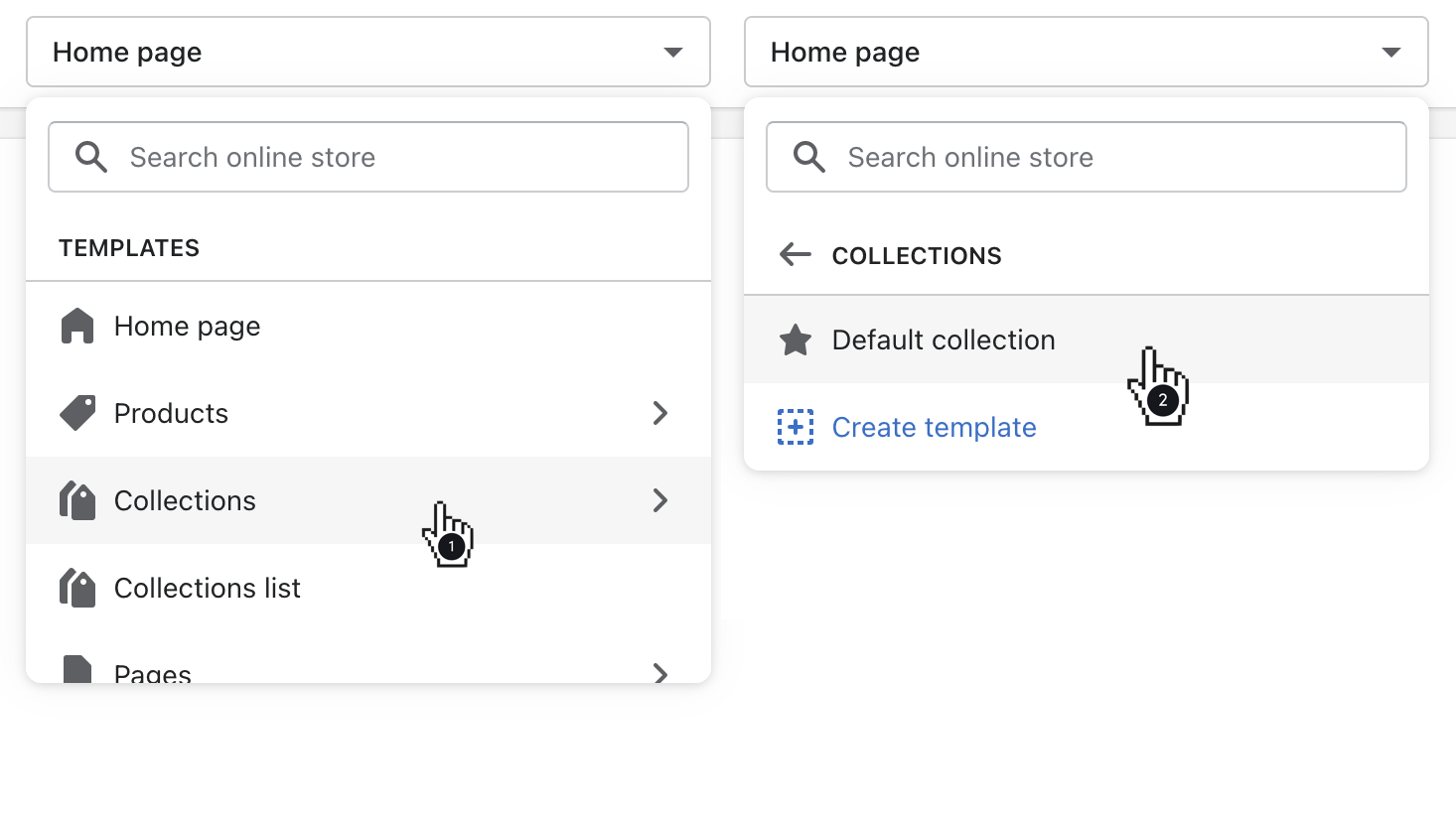
By default, settings applied to the Collection pages section affect all collection pages. If you want to show different promo blocks on different collections, you can override these settings on a per-collection basis: