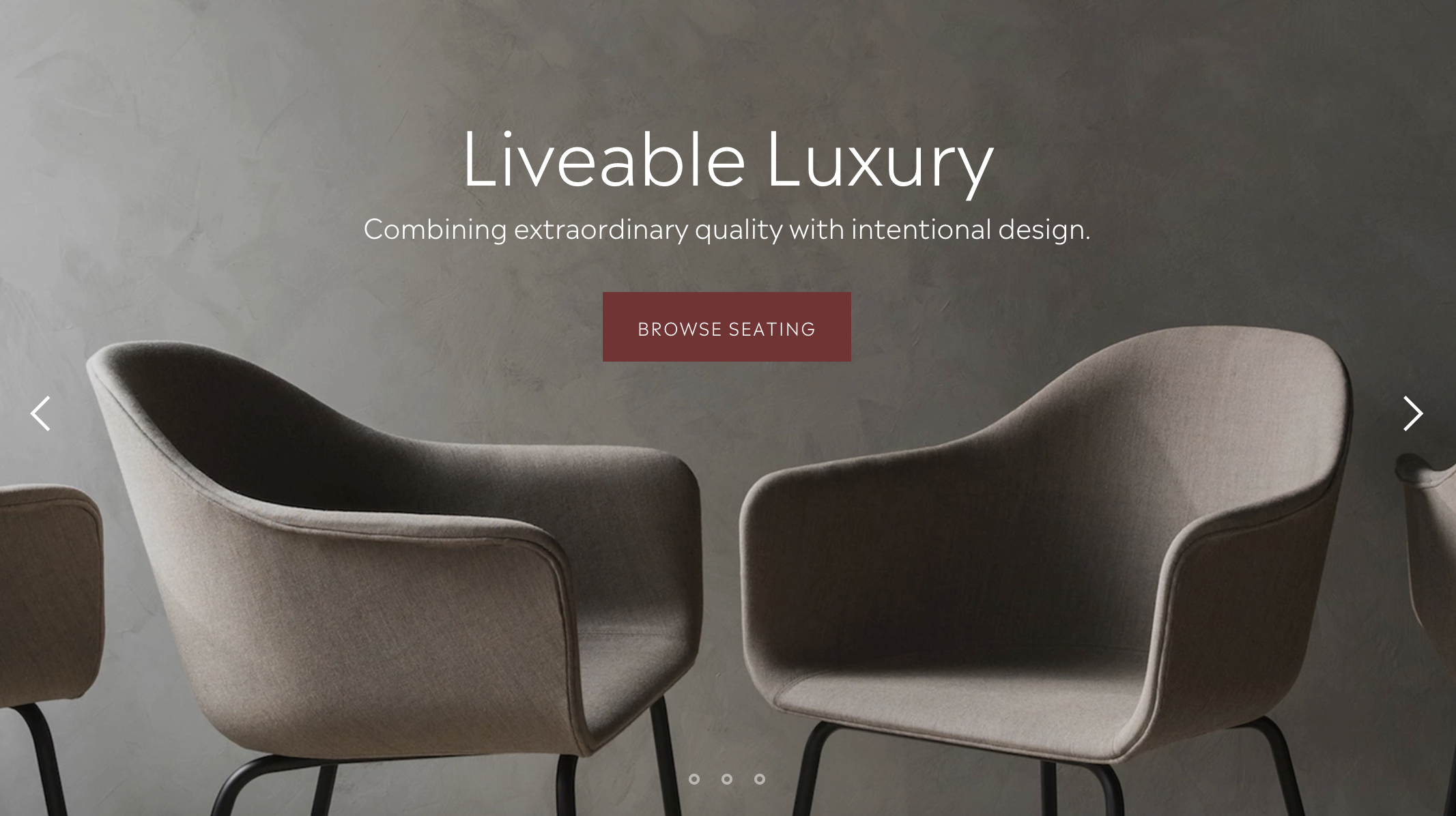
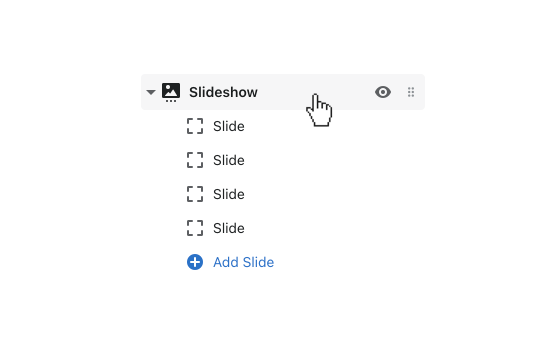
The top section of your home page is your store’s most valuable real estate. The Slideshow section combines images, text, and call-to-action buttons to showcase your most recent deals, top-selling products, or brand messaging. Safa supports up to five slides at a time.
Add this section to: Home page, Product page, Collection page, Static page, Blog post, Blog page, Cart page, Collections list page, Search results page, 404 page, Password page
Enable Auto-rotate slides to cycle through slides automatically. Set the Change slides every slider to control how long each slide is visible (5-12 seconds). Disable this and customers can manually click through.
Safa offers a parallax scrolling effect for the slideshow’s image and text. To activate, enable Parallax in the section settings.
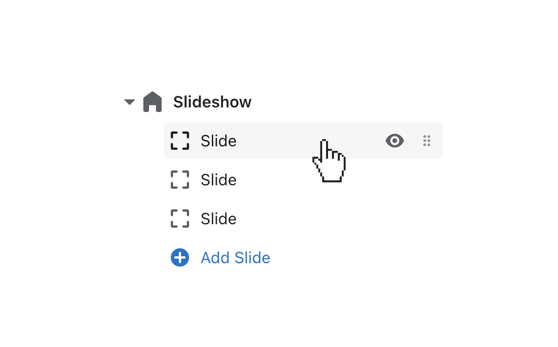
Upload the images and customize the text overlays. Click on one of the Slide blocks to expand the settings.
Click Select Image to connect the image. Using images with a width between 2000px and 4000px is best to maintain quality across all window and device sizes. Height should fall within the 500-1000px range.
Input and format the slide’s Heading, Caption, Button text, and Link URL. Safa provides custom placement control using the Text position dropdown — choose from top left, top right, bottom left, bottom right, top center, or bottom center on a per-slide basis.