Home / Blocks / Arranging Product Images

Arranging the Product Images in Safa

The Safa theme gives you full control over how product images appear on the product page template. You can reorder images, enable zoom, embed videos, and configure image display settings to create the perfect product presentation.

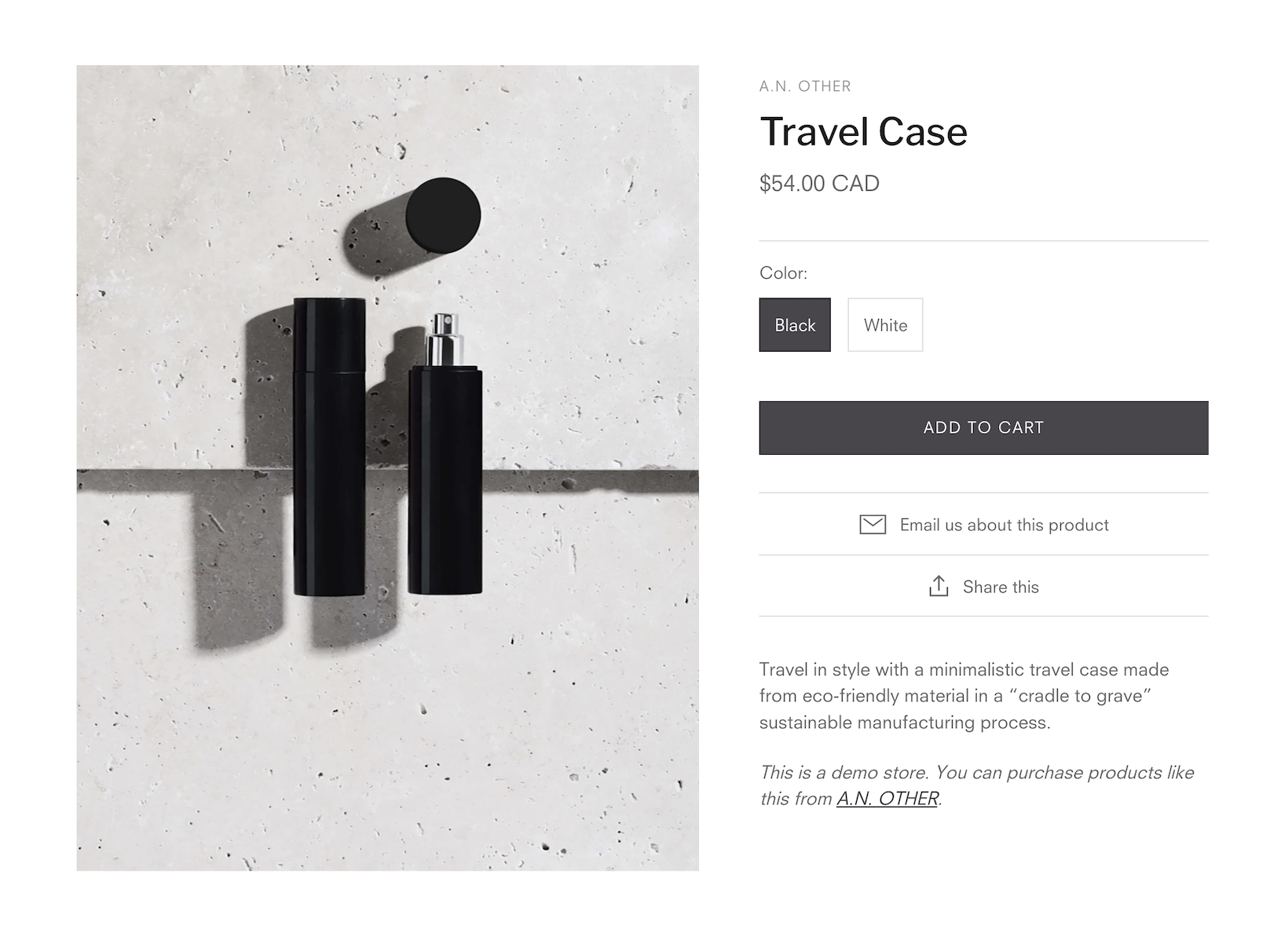
Product page in Safa Organic demo

Accessing Product Image Settings

Before customizing product images, navigate to the Product pages settings in the theme editor:

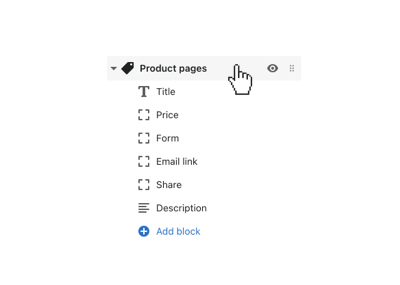
Click product pages to open general settings
  1. From your Shopify admin, go to Online Store > Themes and click Customize.
  2. Navigate to a Product page template.
  3. Click the Product pages section in the sidebar to open general settings.

Setting the Default Product Image

To change which product image appears first:

  1. From your Shopify admin, go to Products > All products.
  2. Click the product you want to edit.
  3. In the Media section, drag and drop images to reorder them. The first image in the list becomes the default product image.
  4. Click Save.

Image Display Options

Image Zoom

Enable the image zoom feature to allow customers to inspect product details. When enabled, hovering over the main product image shows a magnified view. Configure this in the theme settings under Product pages > Image zoom.

Image Gallery Layout

The Safa theme supports multiple image gallery layouts. You can choose between:

  • Thumbnails below — Image thumbnails displayed in a row below the main image
  • Thumbnails beside — Image thumbnails displayed in a column beside the main image
  • Slideshow — Full-width image slideshow with navigation arrows

Product Videos

Safa supports embedding product videos directly in the image gallery. Supported formats include:

  • YouTube — Paste the YouTube video URL in the product media section
  • Vimeo — Paste the Vimeo video URL in the product media section
  • Shopify Hosted Video — Upload video files directly through the Shopify media section