Home / Sections / Adding a Map

Adding a Map to a Page

The Safa theme allows you to add a Google Map to your store to help customers find your physical location. You can add a map through the Map section or by embedding one in a Custom HTML section.

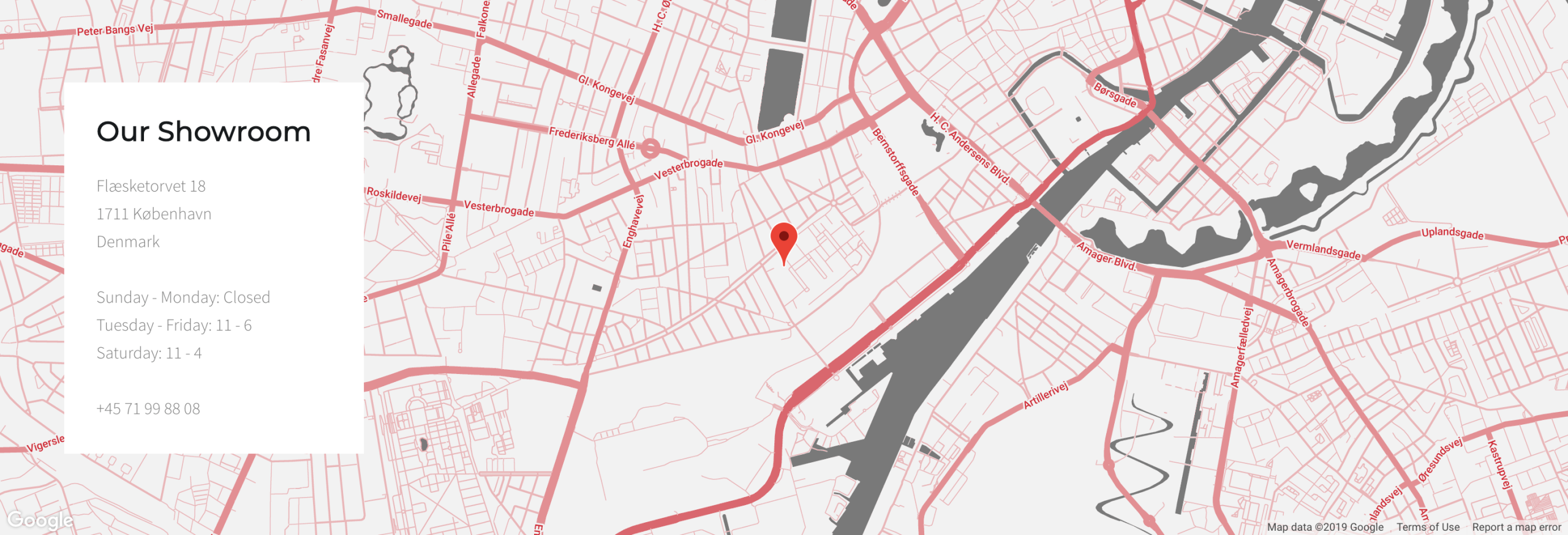
Map section in Safa theme
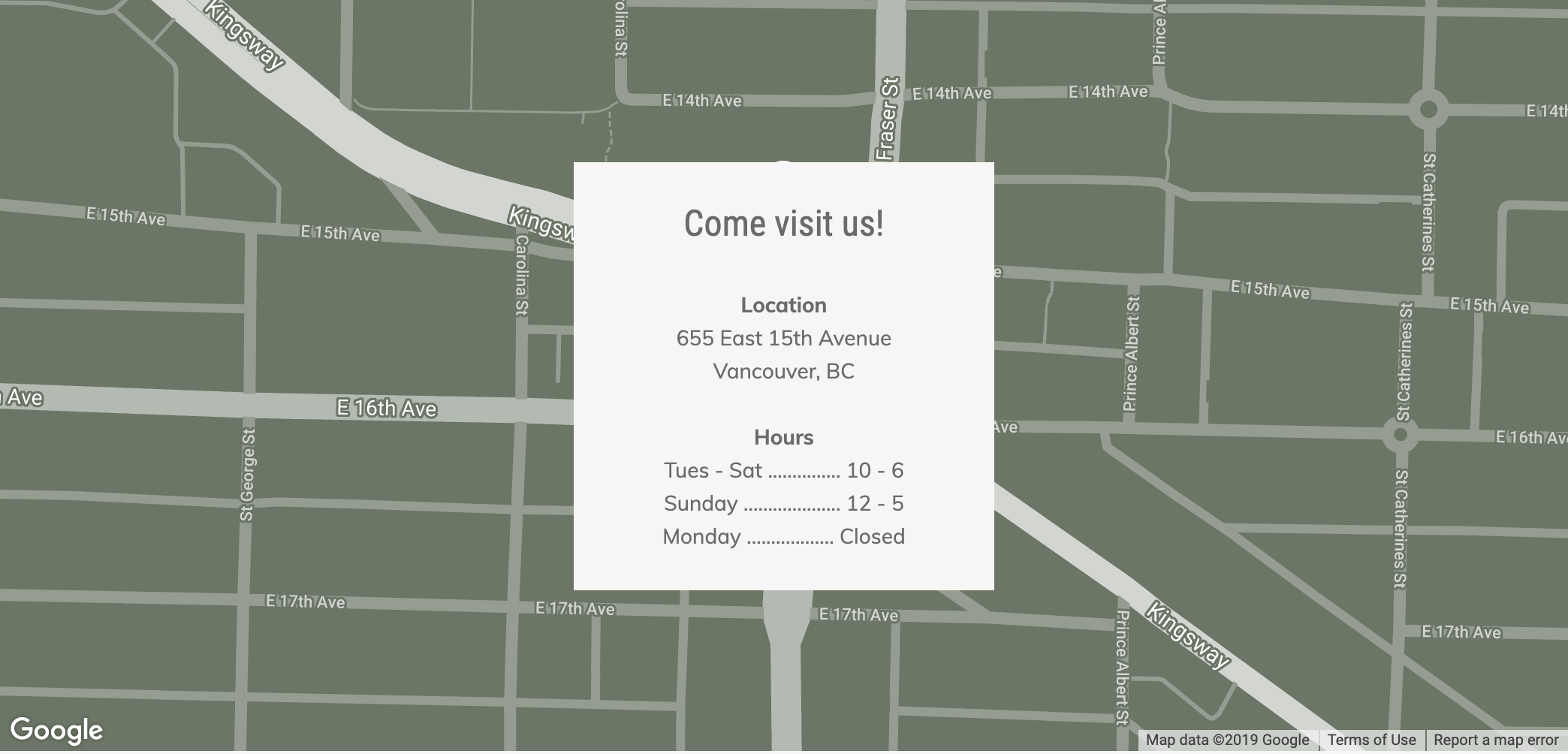
Map in Handy demo

Using the Map Section

  1. In the theme editor (Customize), click Add section.
  2. Select Map from the list of available sections.
  3. Click the section to open its settings.
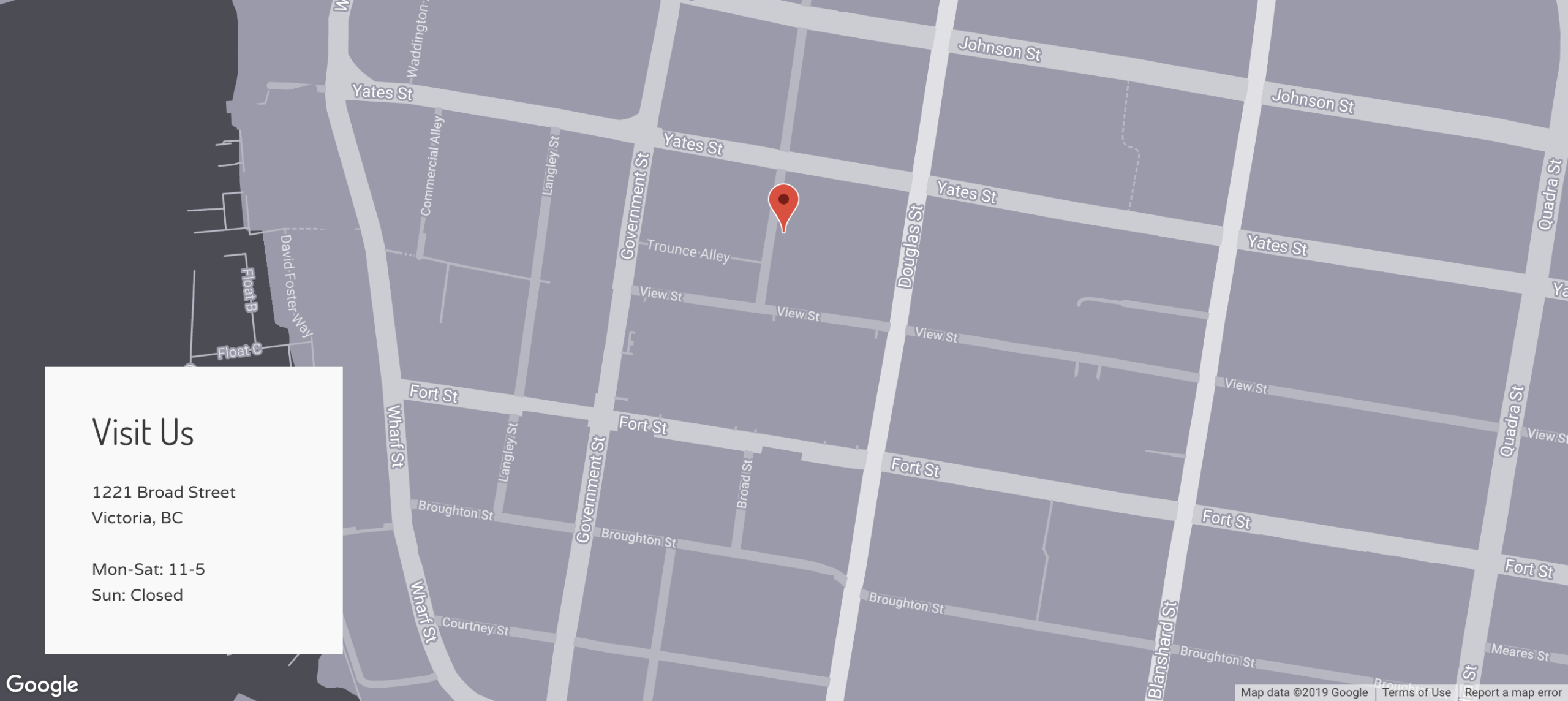
Map in Vogue Organic demo

Customize Map Settings

  • Heading — Add a title above the map (e.g. “Visit Our Store”).
  • Address — Enter your business address for the map pin.
  • Map height — Adjust the height of the map display.
  • API key — Some configurations may require a Google Maps API key.
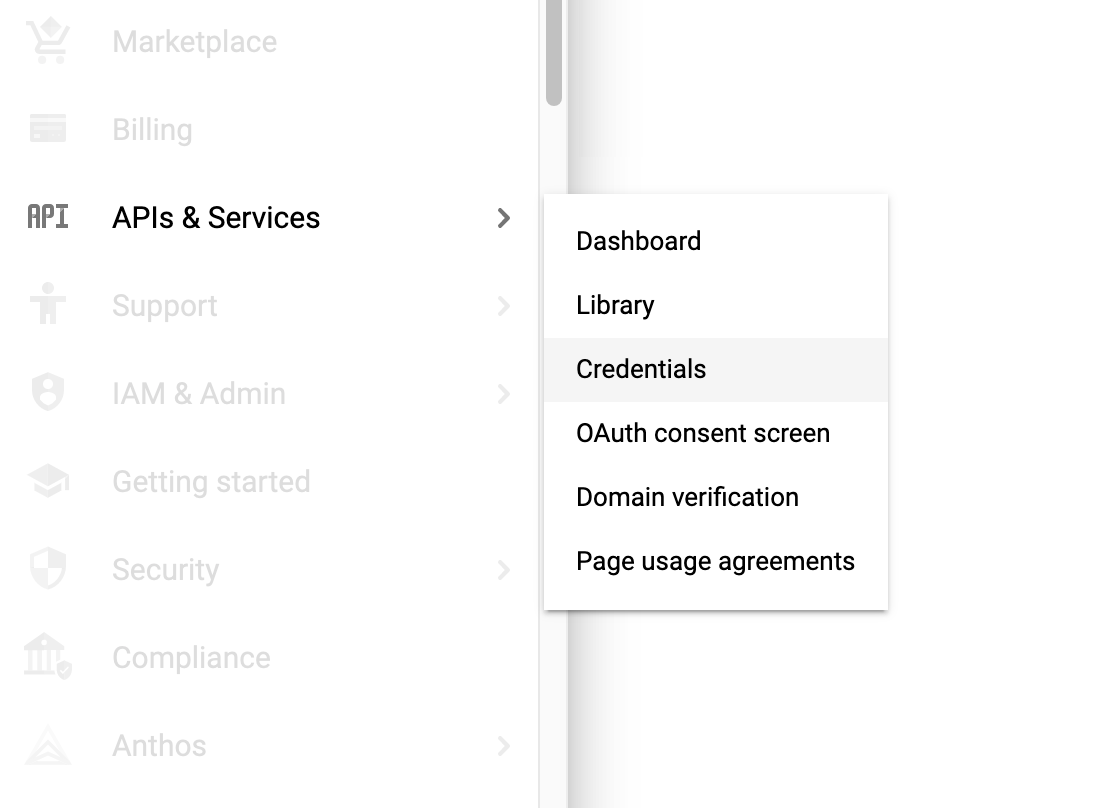
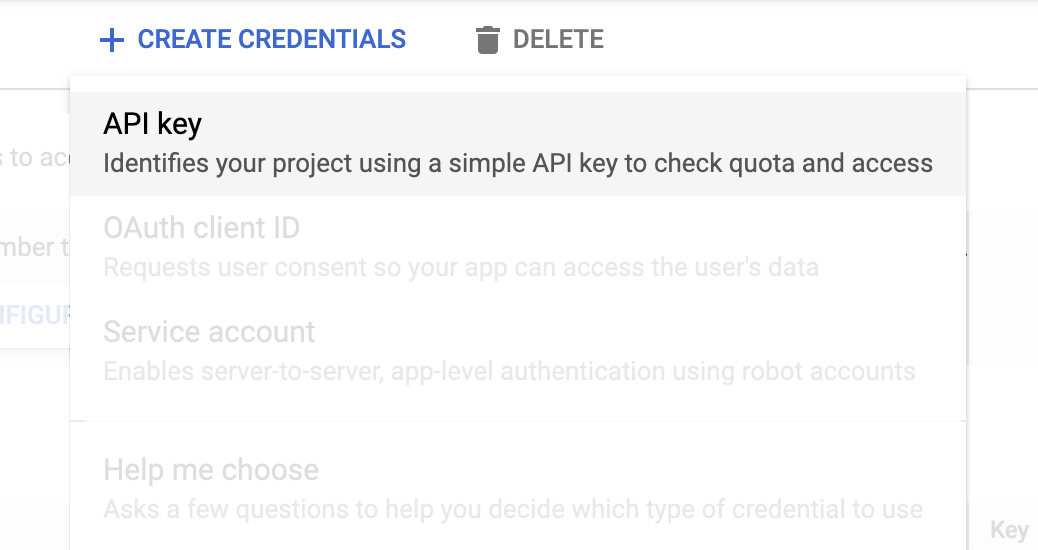
Select credentials in Google Cloud Platform
Select API key from the credentials page
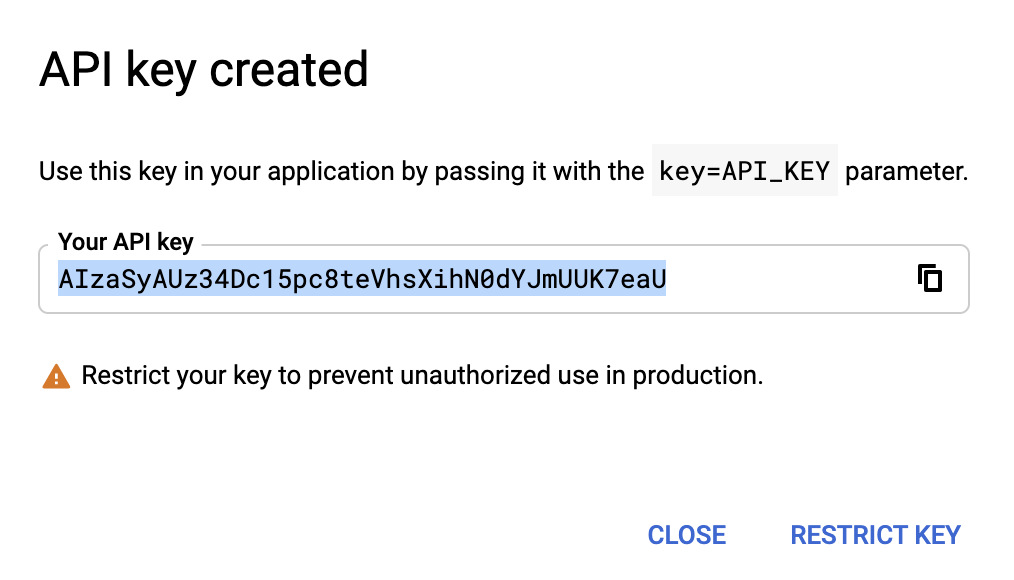
Copy the API key
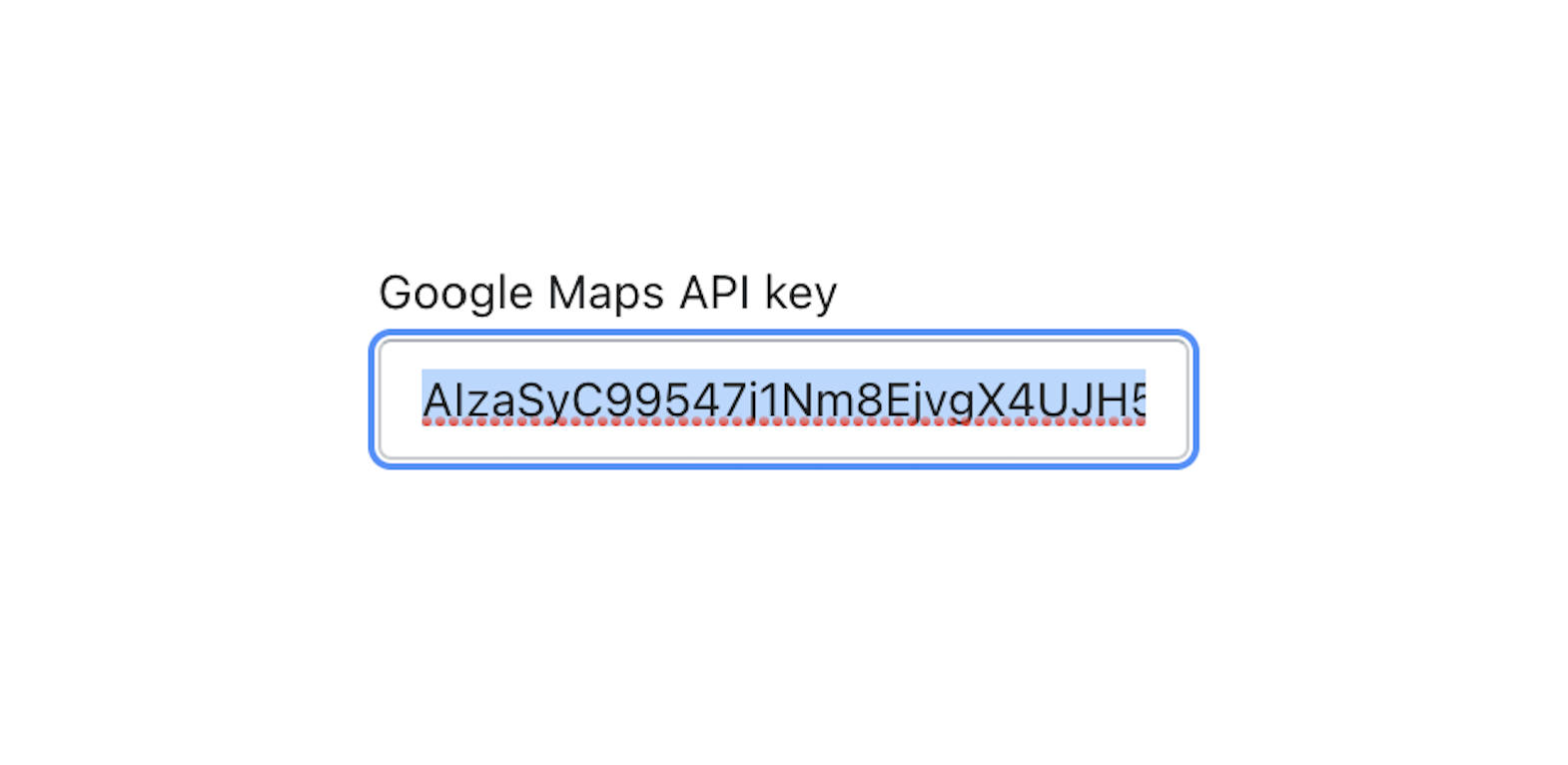
Paste the API key into theme settings
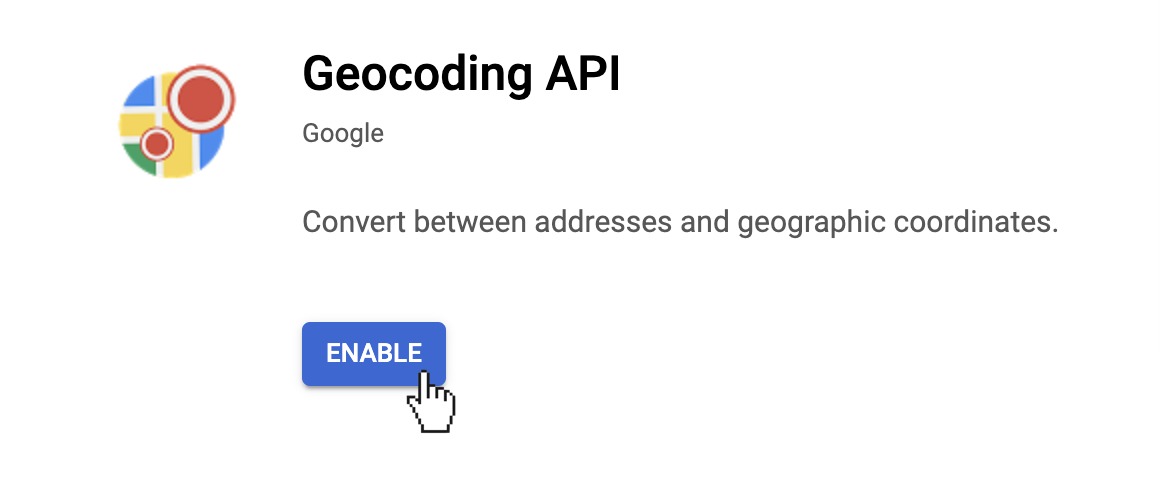
Select enable to activate the map

Using Custom HTML

Alternatively, you can add a map using the Custom HTML section:

  1. Add a Custom HTML section to your page.
  2. Generate an embed code from Google Maps (Share > Embed a map).
  3. Paste the iframe code into the Custom HTML content area.